
The size chart, right where the shopper decides.
Wrong size is the biggest single reason apparel comes back. Put a real size chart on the product page — with a cm/inch toggle — and let people check before they buy. Build your own charts, assign them per product free, and on Pro let a whole category or attribute set inherit the right chart automatically.
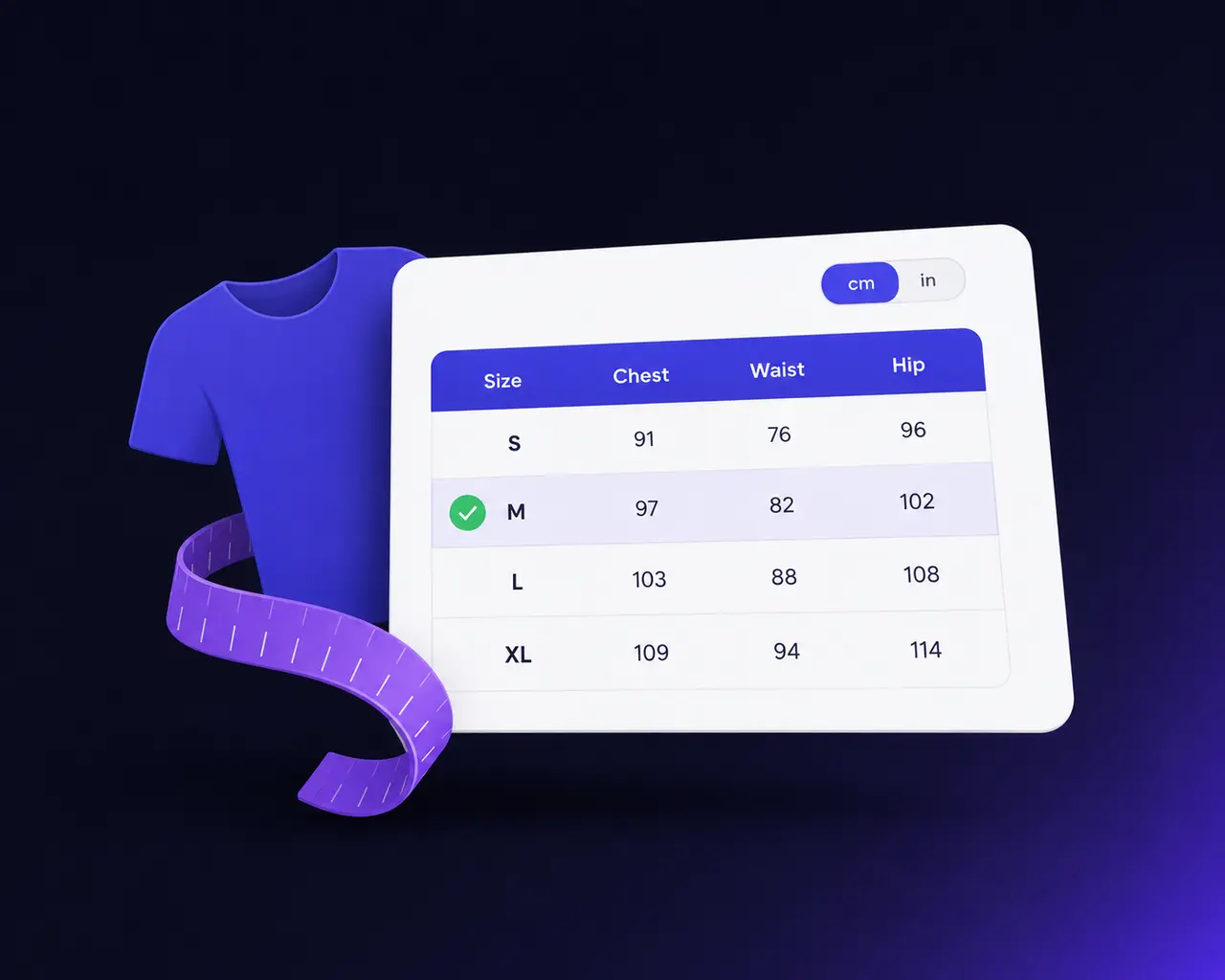
The size chart exists. It is just not on the page.
Ask anyone selling clothing what their biggest avoidable cost is and you will get the same answer: garments coming back because they did not fit. The measurements almost always exist somewhere — in a supplier PDF, in a spreadsheet, in an image somebody made once. What is missing is the chart being on the product page, at the moment of the decision.
The usual workarounds each fail in their own way. A chart baked into a JPEG cannot be read by a screen reader, does not reflow on a phone and cannot be updated without going back to a designer. A chart pasted into the description is duplicated across every product and drifts out of date one product at a time. A chart behind a scripted pop-up disappears entirely for anyone whose JavaScript did not load — which is exactly the shopper on a bad connection you were least able to afford to lose.
What is actually needed is dull and specific: a table you can edit, attached to the products it applies to, that renders as text on the page whether or not anything else works.
Three things it does that an image of a table does not.
It is readable without JavaScript
The panel is a native HTML disclosure, so it opens, takes keyboard focus and is announced to screen readers with no script at all. The cm/inch toggle is the only enhancement layered on top — and where it cannot run, every column simply renders, so a shopper sees more information rather than none.
One chart can cover a whole range
Assign a guide to a product, or on Pro to a category or an entire attribute set. Put one chart on the "Shoes" attribute set and every shoe you add from then on is covered without anyone remembering to attach it. Where two could apply, the deepest category wins — "Womens › Dresses" beats "Womens".
Start from a standard, then correct it
Six prepared charts ship — women’s and men’s clothing, women’s and men’s shoes, kids’ by age, and ring sizes. Apply one and edit it against the garments you actually sell. Sizing varies between manufacturers, and the module says so on the screen rather than pretending a preset is the truth.
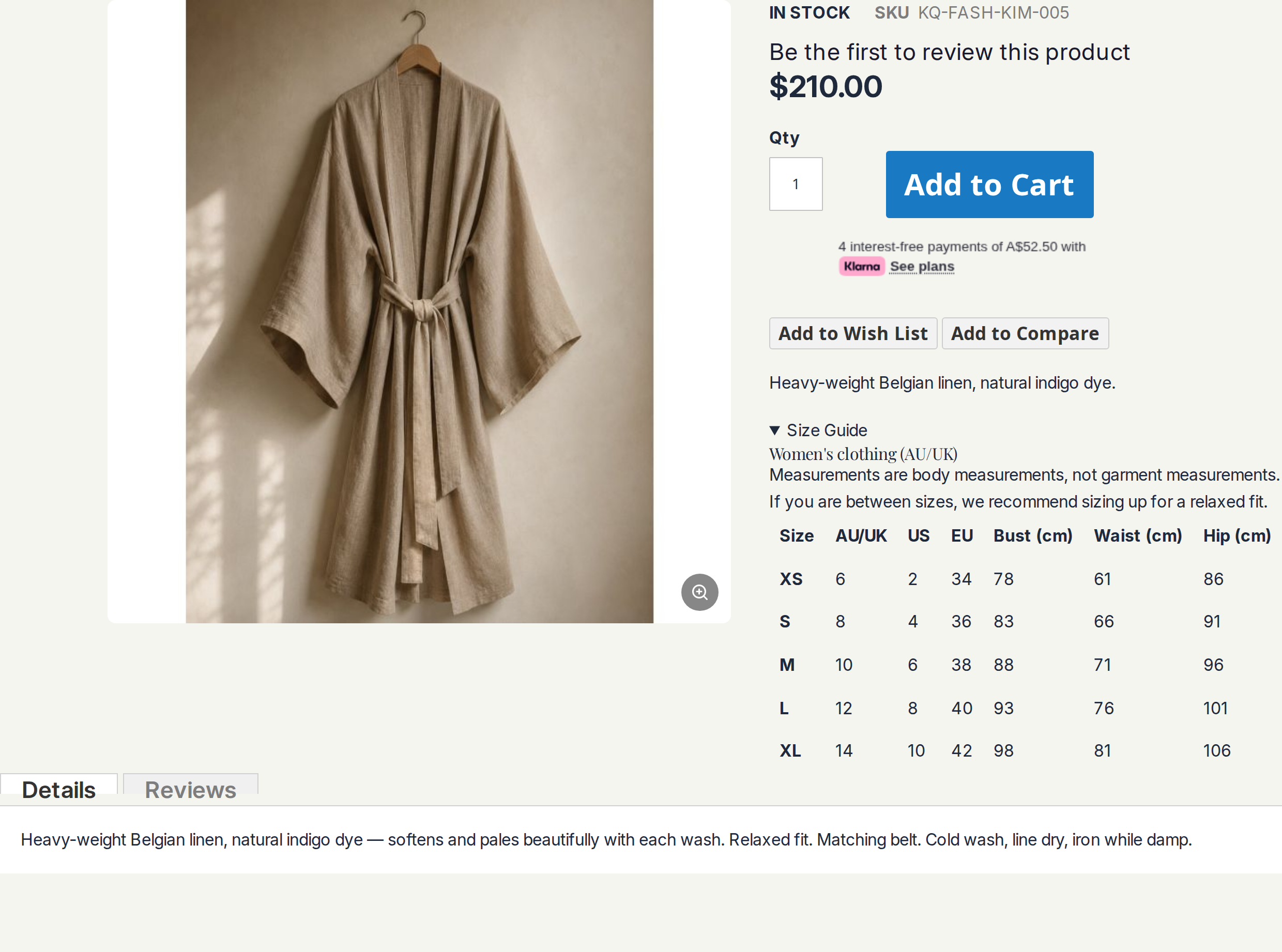
The chart opens in place. Nothing navigates away.
In panel mode the guide sits in the product information area as a labelled disclosure. The shopper clicks it, the chart expands where it is, and the page they were about to buy from stays exactly where it was. In tab mode it becomes another tab beside Details and Reviews.
Above the numbers sits the guide’s own description — the place to say whether these are body or garment measurements and what to do if someone is between sizes. That sentence prevents more returns than another column of figures.
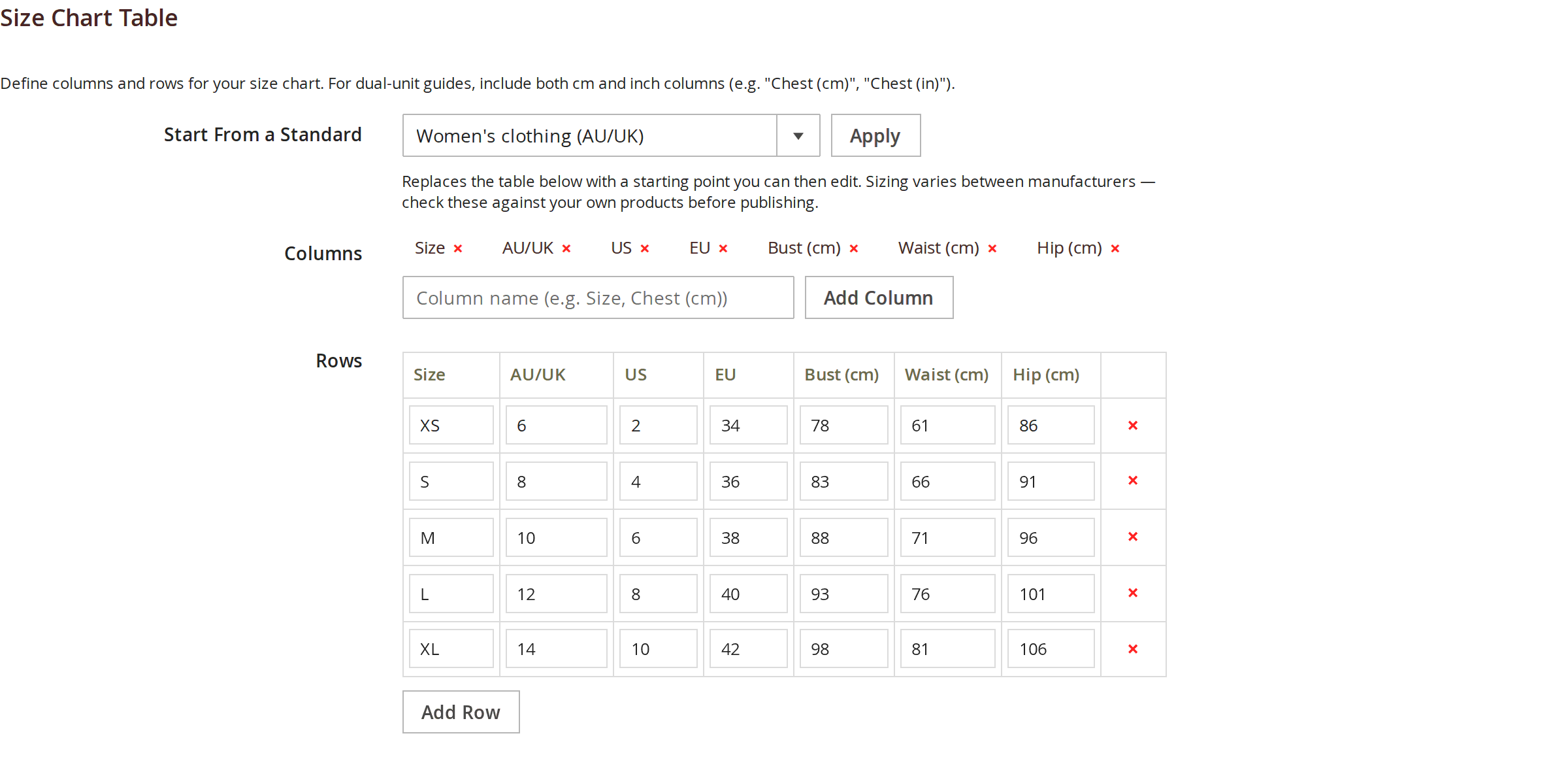
Your columns, your rows — or start from a standard.
A guide is a table you define. Add the columns your buyers need, add rows, fill in the cells. Nothing is fixed: a dress chart and a ring-size chart are the same feature with different headings.
On Pro, Start From a Standard fills the table from one of six prepared charts so you are correcting numbers rather than typing them. Applying a standard replaces the current table and the form asks you to confirm first — pick your standard, then edit.
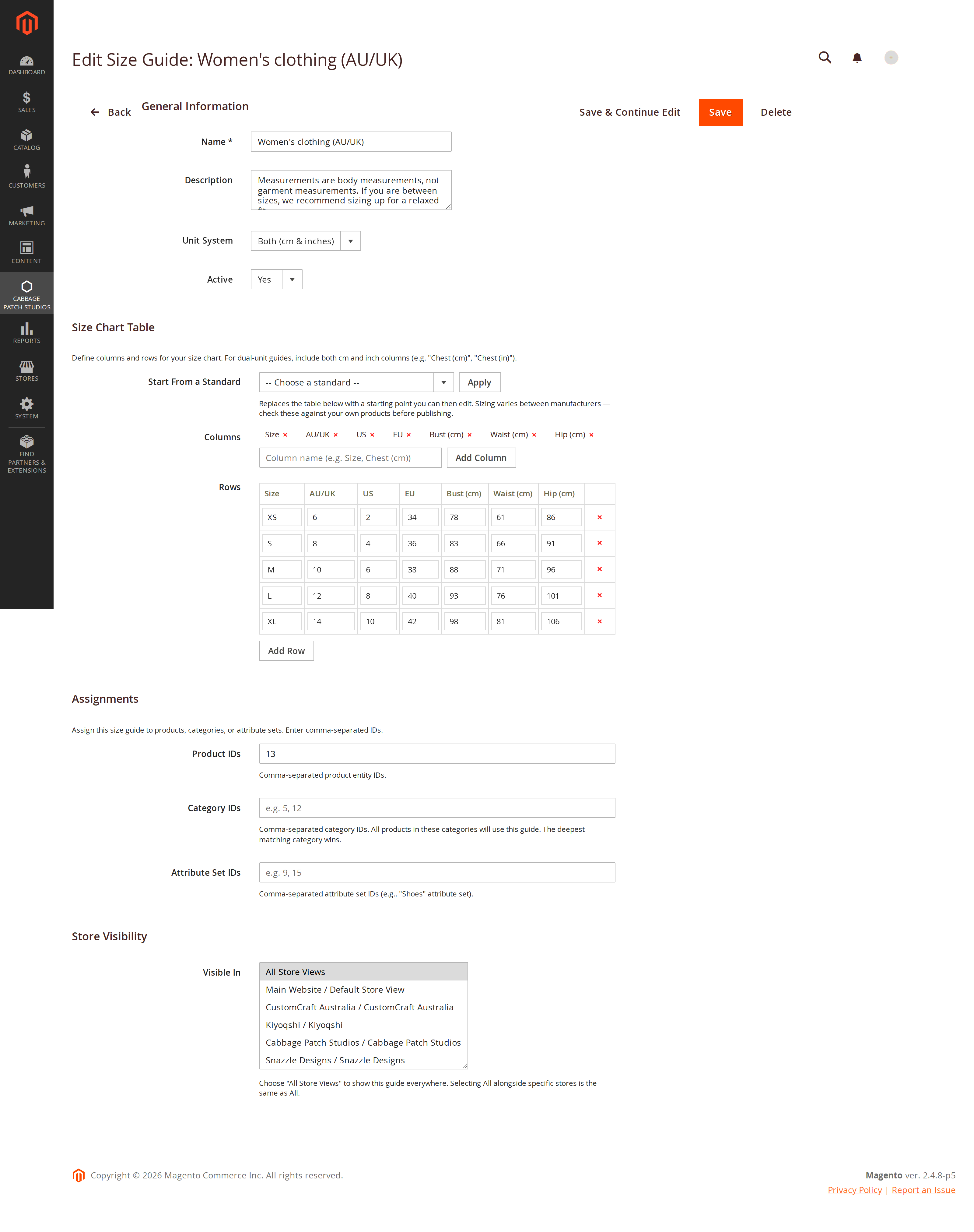
Assign it once and stop thinking about it.
One form carries the chart, everything it is assigned to, and where it is allowed to show. Products on every tier; categories and attribute sets on Pro. Attribute-set assignment is usually the least work of the three — set it on "Shoes" once and every shoe you ever add inherits the right chart.
When more than one guide could apply the resolution is defined, not arbitrary: product first, then the deepest matching category, then attribute set. A product can only be directly assigned to one guide, so there is never an ambiguous answer — the database enforces it rather than the code hoping for it.
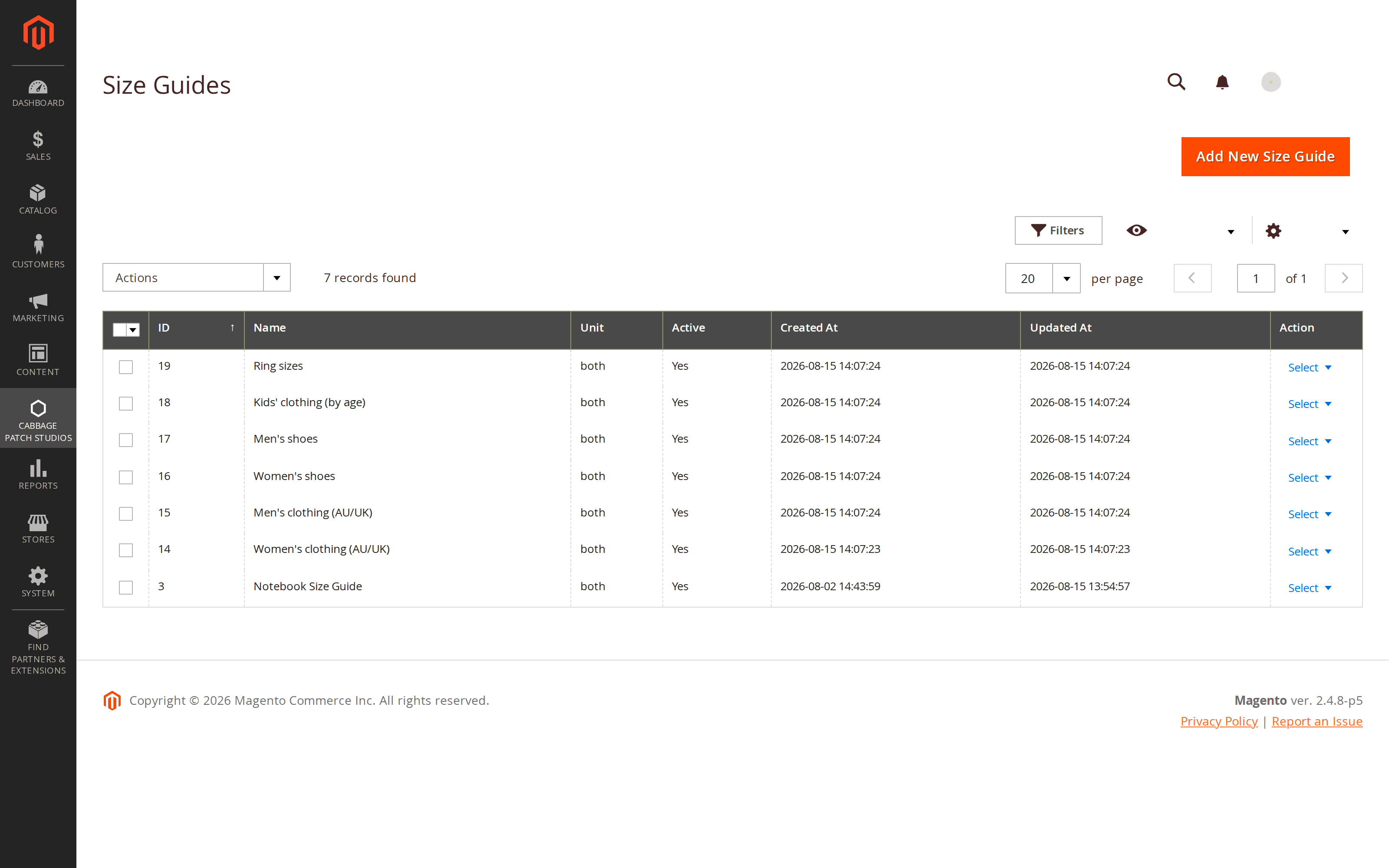
A list of charts, not a chart buried in each product.
Guides live in their own grid with their name, unit system and status. Editing the chart edits it everywhere it appears — there is no per-product copy to find when the supplier changes their grading.
The free tier holds two guides, which is enough for a store selling one kind of thing. Pro lifts the limit, and the cap is enforced when you save rather than described in the marketing.
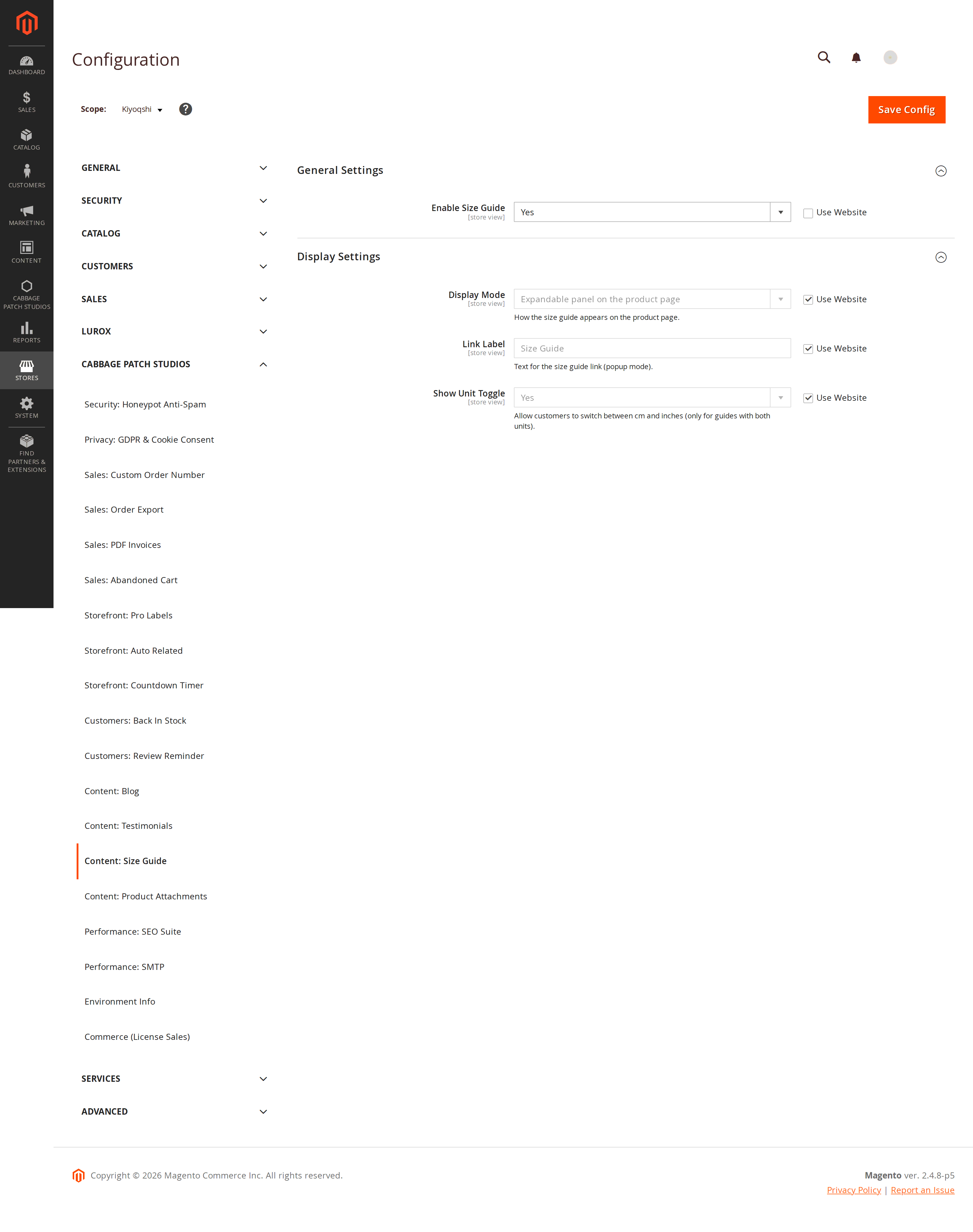
Off until you switch it on — and then, per store view.
The module ships disabled. Installing it changes nothing a shopper can see until you decide otherwise, which is how a third-party extension should behave.
Once enabled, display is set per store view: panel or tab, the link and tab labels, and whether the cm/inch toggle appears. A multi-brand install can run the panel on one storefront and the tab on another from the same configuration screen.
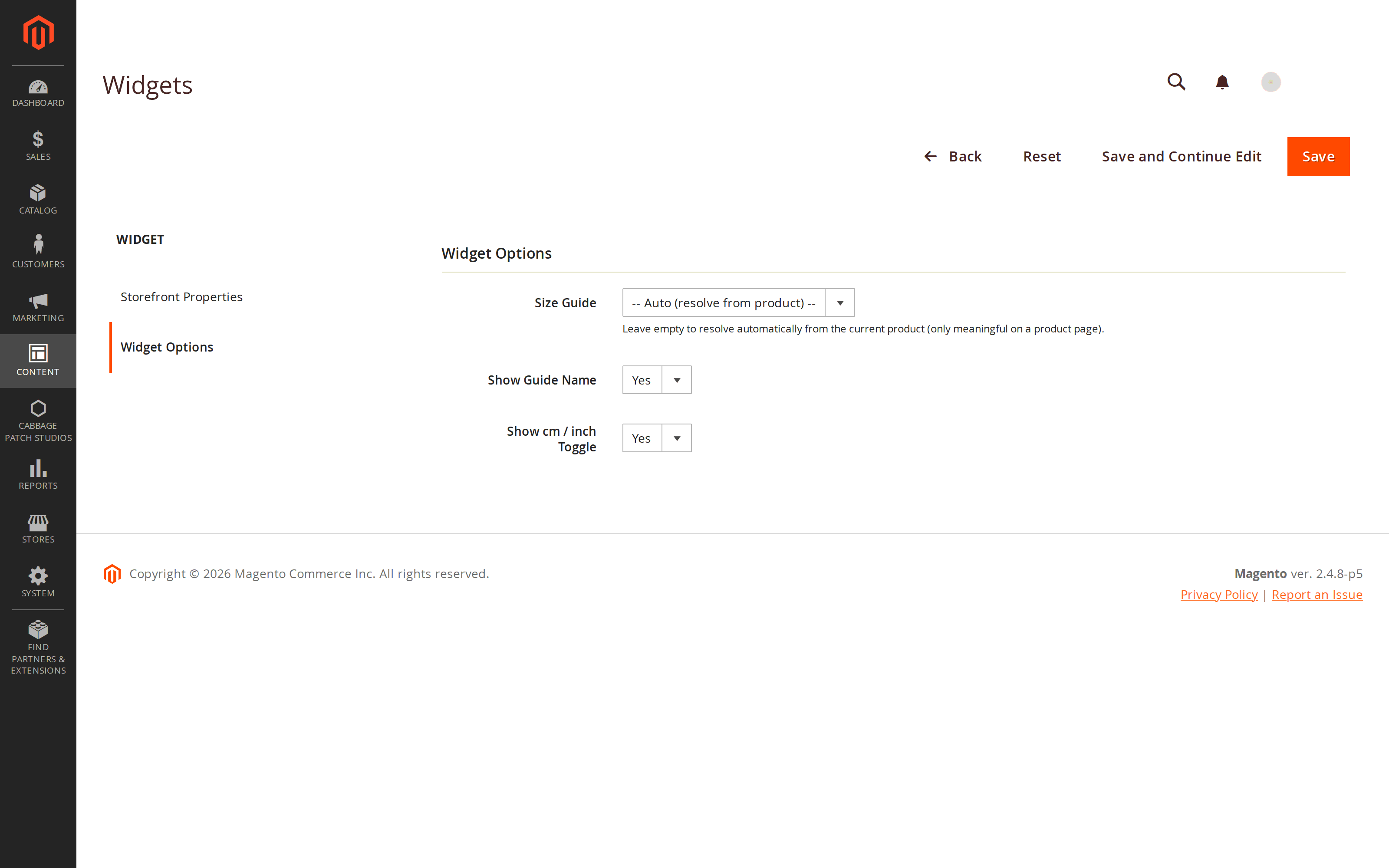
And anywhere else you want it.
Besides the two product-page positions, Size Guide ships a standard Magento widget, so a chart can be placed in any layout position on any page — a "Size & fit" page in the footer carrying every chart you publish, for instance.
The widget takes a specific guide, or Auto to resolve whichever chart belongs to the product being shown, plus its own toggles for the guide name and the units. Being a native widget is what makes it themeable anywhere: Luma, Hyvä or Lurox, no per-theme port.
Every screen, from the storefront to the widget.
How to add a size chart to a Magento 2 product
- Switch the module on. In Stores › Configuration › Cabbage Patch Studios › Content: Size Guide, set Enable Size Guide to Yes and choose whether the chart appears as an expandable panel or a product tab.
- Build the chart. In Content › Size Guides, add a guide, give it a name a shopper would recognise, add your columns and rows, and set the unit system. Include both cm and inch columns if you want the toggle to do anything.
- Assign it. Put the product IDs in the Assignments section and save. The chart appears on those product pages immediately.
That is the whole free path, and it stays free. Category and attribute-set assignment, per-store visibility, the ready-made standards and the widget are Pro — and none of them change these three steps.
How to apply one size chart to a whole category
- Open the guide in Content › Size Guides.
- Add the category IDs to the Assignments section instead of — or as well as — product IDs. Every product in those categories now uses the chart.
- Or use the attribute set. Assigning to an attribute set covers every product built on it, including ones you have not created yet, which is usually the least maintenance of the three.
Where a product sits in several guide-bearing categories the deepest one wins, so a specific "Womens › Dresses" chart correctly overrides a general "Womens" one. Category and attribute-set assignment are Pro.
Why this one.
A free tier the premium cluster does not offer
The $139–$149 extensions in this category have no free tier at all. Two guides, product assignment and the unit toggle are free here, permanently — enough for a store selling one kind of thing to never pay us anything.
A chart that cannot vanish
Most implementations open the chart in a scripted modal, so it is gone for anyone whose JavaScript failed. Ours is a native disclosure that works with scripting off entirely — the earlier build of this module made the modal mistake, and it was rewritten before release rather than shipped.
One-time, not a renewal
A perpetual licence with twelve months of updates. When the window ends the module carries on working; renewing only puts you back on the latest version. Several competitors charge again every year to keep the updates coming.
Free vs Pro
The free tier is the working feature, not a countdown. Pro removes the limit and adds the assignment reach.
| Capability | Free | Pro — $149 |
|---|---|---|
| Size charts on the product page | ✔ | ✔ |
| Panel or product-tab display | ✔ | ✔ |
| cm / inch toggle | ✔ | ✔ |
| Per-product assignment | ✔ | ✔ |
| Renders with JavaScript disabled | ✔ | ✔ |
| Number of guides | 2 | Unlimited |
| Category assignment | — | ✔ |
| Attribute-set assignment | — | ✔ |
| Per-store-view visibility | — | ✔ |
| Ready-made size standards (six) | — | ✔ |
| Placement widget | — | ✔ |
If a Pro licence lapses, the Pro-only assignments stop resolving rather than silently continuing — and because every guide behaves as all-stores on the free tier, downgrading never hides a chart that was already visible.
Pricing
30-day money-back guarantee · perpetual licence — the module keeps working after the update window ends.
Specifications
Platform
Magento 2.4.x Community Edition, PHP 8.4.
Themes
Luma, Hyvä, Lurox or any modern theme. Static-first markup — the chart renders with JavaScript disabled.
Scope
Licensed per website. Display settings apply per store view; guide visibility is per store view on Pro.
Licence
Perpetual, one-time, with 12 months of updates. One activation per domain.
Data
Three tables: guides, assignments and store links. No external service, no data leaves your server.
Support
Email support and the online user guide. Customisation quoted on request.
Release history
Actively maintained — every entry maps to a real release.
Questions merchants actually ask
Yes. Two size guides, assigned per product, shown as a panel or a tab with the cm/inch toggle — free permanently, not a trial. For a store selling one kind of product that may be all you ever need. Unlimited guides, category and attribute-set assignment, per-store visibility, the ready-made standards and the widget are Pro at $149 one-time.
Yes, and this is the main reason to choose it. The panel is a native HTML <details> disclosure, so it opens, is keyboard operable and is announced to screen readers with no script at all. Only the cm/inch toggle is script-enhanced — and where it cannot run, every column renders instead, so the shopper sees more information rather than an empty box.
Yes, on Pro. Assign a guide to category IDs, or to an attribute set to cover every product built on it including ones you add later. If a product sits in several guide-bearing categories the deepest one wins, so a "Womens › Dresses" chart correctly overrides a general "Womens" one.
Yes, on Pro. Each guide has a store-visibility setting, so an AU-sizing chart can show on one storefront and an EU chart on another from the same catalogue. On the free tier every guide behaves as all-stores — which also means downgrading never hides a chart that was already visible.
Both. Six ready-made standards ship on Pro — women’s and men’s clothing, women’s and men’s shoes, kids’ clothing by age, and ring sizes — and applying one fills the table so you are editing rather than typing. Treat them as a starting point: sizing varies between manufacturers, and the numbers that matter are measured off the garments you actually sell.
Not in version 1. Charts are real tables, which is what makes them readable on a phone, selectable, translatable and available to a screen reader — none of which an image gives you. Image-based guides are on the roadmap; we would rather ship them with the upload security they need than half-done. If you have a diagram, place it on the page around the guide.
No. It is a one-time licence per website with twelve months of updates. When the update window ends the module keeps working exactly as it is — renewing only puts you back on the latest version.
Answer the size question before it becomes a return.
Put a real size chart on the product page — readable without JavaScript, assigned per product free, and across whole categories on Pro. Self-hosted, yours to keep. Pro is $149 one-time.
Buy Pro — $149